How-to
Calibrate a Bixolon SLP-DX220 label printer
Use Smart Media Detection, run gap or black-mark auto calibration with the Pause and Feed buttons, or calibrate manually in Unified Label Utility-II.
In this guide
The SLP-DX220 finds the start of each label with its media sensors. Calibration teaches the printer your labels so that every print lands in the same place. Bixolon gives you three ways to do it, and you try them in this order: Smart Media Detection, auto calibration with the buttons, and manual calibration with a Windows utility.
You'll need
- The labels you want to use, loaded with the printable side up
- Some spare labels: auto calibration can feed up to 1 m
- For manual calibration: a Windows PC with Unified Label Utility-II
When to calibrate
- When you install the printer for the first time.
- When you change to a different label type or size.
- When labels stop in the wrong place, or a blank label comes out between prints.
- When both lights show a media error although labels are loaded.
Which method to use
| Method | How it starts | Use it when |
|---|---|---|
| Smart Media Detection | Automatically | Gap or black-mark labels, first try |
| Gap sensor auto calibration | Buttons, pattern 4 | Labels with gaps between them that Smart Media Detection doesn't handle |
| Black mark sensor auto calibration | Buttons, pattern 5 | Labels or tags with black marks |
| Manual calibration | Unified Label Utility-II | Auto calibration fails |
Load the labels correctly
Calibration only works when the labels run through the sensors. Open the paper cover, check that the roll sits in the media holder with the printable side facing up, and slide the media guide against the label edges. The gap sensor is in the media guide; black marks and notches are read by a separate sensor. Close the cover until it clicks.
After you close the cover, both lights blink green (Cover Close Mode). Press Feed once to align the labels and return to standby.
Let Smart Media Detection run
Smart Media Detection recognises gap and black-mark labels without any settings. It uses 3 to 5 labels and starts by itself:
- on the first start, when you press Feed or send a print job
- when the printer notices that the label length has changed
- when your software sends a media type that differs from the printer's setting
- after a factory reset
Press Feed a few times. If each press feeds exactly one label and the printer stops at the gap, you're done. If not, continue with auto calibration.
Note
A successful auto or manual calibration switches Smart Media Detection off. The printer then uses your calibration values. A factory reset switches Smart Media Detection on again.
Run auto calibration with the buttons
Auto calibration is in the Stand-alone Configuration Mode. In this mode the two lights step through nine patterns by themselves. LED 1 stays on, LED 2 blinks four times, then the next pattern follows. You choose a function by pressing Feed while its pattern is showing.
- Check that the printer is in standby: both lights steady green.
- Press and hold Pause for about 2 seconds. Both lights turn orange.
- Watch the lights. Press Feed when the right pattern shows:
- Gap labels: LED 1 orange, LED 2 blinking green (pattern 4).
- Black-mark labels: LED 1 orange, LED 2 blinking orange (pattern 5).
- The printer feeds labels while it calibrates the sensor. Wait until it stops, then press Feed to check that one label comes out.
Important
Pattern 3 (LED 1 green, LED 2 blinking red) is a factory reset, and pattern 9 deletes items downloaded to the printer. If you are not sure which pattern is showing, don't press Feed. Switch the printer off and on to return to standby and start again.
If auto calibration fails
If the printer doesn't find a gap or mark within about 1 m of media, it stops in error mode. Open the cover and close it again to clear the error. Check the loading and the label type, then try again or use manual calibration.
Calibrate manually with Unified Label Utility-II
Manual calibration measures the sensor values and lets you choose the threshold. Download Unified Label Utility-II from the SLP-DX220 download page. Bixolon lists it for Windows 7 to 10.
- Connect the printer, start Unified Label Utility-II and set the interface type.
- Click Calibration Setting Manager.
- Select the sensing type (gap or black mark) and enter the label length in millimetres.
- Click Check Sensing Value. The printer calibrates and prints the measured values, and they also appear on the screen.
- The best values are shown in bold on the left. Select one with its option button and click Save Calibration.
- Test with Feed. If the labels still don't stop correctly, choose another bold value and save again.
To go back to the factory value, click Cancel Calibration.
Match the label size in your software
Calibration tells the printer where labels start. Your software must still send the right page size. Enter the exact label width and height in the Windows driver's printing preferences and in your label software, such as Bixolon's Label Artist-II. A wrong size causes the same symptoms as a missing calibration: shifted print and blank labels.
If labels still skip
- Clean the sensors. Switch the printer off, open the cover, remove the labels and wipe the sensors and the paper path with a dry cloth or cotton swab. Use alcohol only for adhesive residue, and let it dry before you reload.
- Check the media. The printer takes labels 15–60 mm wide (15–58 mm with the peeler) and 0.06–0.20 mm thick.
- Reset and start over. A factory reset (pattern 3) returns the printer settings to factory defaults and runs Smart Media Detection again.
More fixes are in SLP-DX220 troubleshooting, and loading is shown step by step in the SLP-DX220 setup guide.
Frequently asked questions
How do I calibrate a Bixolon SLP-DX220 without a computer?
Hold Pause for 2 seconds until both lights are orange, then press Feed when LED 1 is orange and LED 2 blinks green (gap labels) or orange (black-mark labels).
Do I need to calibrate after every new roll?
No. Calibrate when you change to a different label type or size, or when labels start to skip.
Why are both lights orange on my SLP-DX220?
The printer is in Stand-alone Configuration Mode, which starts when Pause is held for 2 seconds. Wait for the pattern you need and press Feed, or switch the printer off and on.
What does LED 1 red with LED 2 off mean?
Media calibration failed. Open and close the cover, check the labels and run the calibration again.
Was this guide helpful?
Used in this guide
Compatible consumables and accessories for the SLP DX220.
Compatible labels
| Product | Size (W × H) | Material | Labels / roll | Core | Price | ||
|---|---|---|---|---|---|---|---|
 |
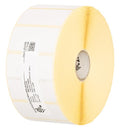
Zebra Z-Select 2000D800262-125 | 57.15 × 31.75 mm | Thermal Paper | 2100 | 25.4 mm | 349,00 Kč+VATIn stock | |
 |
Zebra Z-Select 2000D880199-025D | 51 × 25 mm | Thermal Paper | 2580 | 25.4 mm | 349,00 Kč+VATIn stock | |
 |
Zebra Z-Perform 1000D880595-025DU | 38.1 × 25.4 mm | Thermal Paper | 2580 | 25.4 mm | 292,00 Kč+VATIn stock | |
 |
Zebra Z-Select 2000D800261-105 | 31.75 × 25.4 mm | Thermal Paper | 2580 | 25.4 mm | 230,00 Kč+VATIn stock | |
 |
Zebra Z-Select 2000D800262-205 | 57 × 51 mm | Thermal Paper | 1370 | 25.4 mm | 349,00 Kč+VATIn stock | |
 |
Zebra Z-Perform 1000D880175-031D | 50.8 × 31.75 mm | Thermal Paper | 2100 | 25.4 mm | 326,00 Kč+VATIn stock | |
 |
Zebra Z-Select 2000D800261-107 | 38 × 25 mm | Thermal Paper | 2580 | 25.4 mm | 322,00 Kč+VATIn stock | |
 |
Zebra Z-Select 2000D3007208-T | 31 × 22 mm | Thermal Paper | 2780 | 25.4 mm | 230,00 Kč+VATIn stock | |
 |
Zebra Z-Select 2000D800262-405 | 57.15 × 101.6 mm | Thermal Paper | 700 | 25.4 mm | 349,00 Kč+VATIn stock | |
 |
Zebra Z-Select 2000D3007207 | 25.4 × 76.2 mm | Thermal Paper | 930 | 25.4 mm | 215,00 Kč+VATIn stock | |
 |
Zebra Z-Select 2000D3007209-T | 57 × 76 mm | Thermal Paper | 930 | 25.4 mm | 349,00 Kč+VATIn stock | |
 |
Zebra Z-Select 2000D800262-075 | 57.15 × 19.05 mm | Thermal Paper | 3315 | 25.4 mm | 349,00 Kč+VATIn stock | |
 |
Zebra Z-Select 2000D Removable800262-127 | 57.15 × 31.75 mm | Thermal Paper | 2100 | 25.4 mm | 391,00 Kč+VATIn stock | |
 |
Zebra Z-Select 2000D 190 Tag800999-005 | 32 × 57 mm | Thermal Paper | 600 | 25.4 mm | 226,00 Kč+VATOut of stock | View |
 |
Zebra Z-Select 2000D 190 Tag800999-009 | 57 × 34.93 mm | Thermal Paper | 967 | 25.4 mm | 297,00 Kč+VATIn stock | |
 |
Zebra Z-Perform 1000D3007189-T | 38.1 × 12.7 mm | Thermal Paper | 5050 | 25.4 mm | 485,00 Kč+VATOut of stock | View |
 |
Zebra Z-Perform 1000D3008727-T | 50.8 × 38.1 mm | Thermal Paper | 1730 | 25.4 mm | 392,00 Kč+VATOut of stock | View |
 |
Zebra Z-Perform 1000D880169-012D | 31.75 × 12.7 mm | Thermal Paper | 4650 | 25.4 mm | 346,00 Kč+VATOut of stock | View |
 |
Zebra Z-Perform 1000D880171-019D | 38.1 × 19.05 mm | Thermal Paper | 3300 | 25.4 mm | 406,00 Kč+VATOut of stock | View |
 |
Zebra Z-Perform 1000D3007899-T | 57.15 × 38.1 mm | Thermal Paper | 1720 | 25.4 mm | 442,00 Kč+VATOut of stock | View |
 |
Zebra Z-Perform 1000D3012789-T | 29 × 33 mm | Thermal Paper | 2000 | 25.4 mm | 315,00 Kč+VATOut of stock | View |
 |
Zebra Z-Perform 1000D880599-101DU | 50.8 × 101.6 mm | Thermal Paper | 700 | 25.4 mm | 403,00 Kč+VATOut of stock | View |
 |
Zebra Z-Perform 1000D880171-031D | 38.1 × 31.75 mm | Thermal Paper | 2100 | 25.4 mm | 406,00 Kč+VATOut of stock | View |
 |
Zebra Z-Perform 1000D3011250-T | 57.15 × 31.75 mm | Thermal Paper | 2060 | 25.4 mm | 448,00 Kč+VATOut of stock | View |
 |
Zebra Z-Perform 1000D880175-012D | 50.8 × 12.7 mm | Thermal Paper | 4650 | 25.4 mm | 408,00 Kč+VATOut of stock | View |
 |
Zebra Z-Perform 1000D880169-076D | 31.75 × 76.2 mm | Thermal Paper | 930 | 25.4 mm | 394,00 Kč+VATOut of stock | View |
 |
Zebra Z-Perform 1000D3012558-T | 40 × 40 mm | Thermal Paper | 1675 | 25.4 mm | 432,00 Kč+VATOut of stock | View |
 |
Zebra Z-Perform 1000D Removable3012759-T | 40 × 40 mm | Thermal Paper | 1710 | 25.4 mm | 470,00 Kč+VATOut of stock | View |
 |
Zebra Z-Perform 1000D880173-012D | 44.45 × 12.7 mm | Thermal Paper | 4650 | 25.4 mm | 471,00 Kč+VATOut of stock | View |
 |
Zebra Z-Perform 1000D880173-019D | 44.45 × 19.05 mm | Thermal Paper | 3300 | 25.4 mm | 469,00 Kč+VATOut of stock | View |
 |
Thermal labels 32x20 / 2000 pcsKK001176 | 32 × 20 mm | Thermal Paper | 2000 | 25 mm | 93,00 Kč+VATIn stock | |
 |
Paper direct thermal labels 40x40 / 1000 pcsKK000193 | 40 × 40 mm | Thermal Paper | 1000 | 40 mm | 81,00 Kč+VATIn stock | |
 |
Thermal labels 50x30 / 1000 pcsKK000538 | 50 × 30 mm | Thermal Paper | 1000 | 40 mm | 93,00 Kč+VATIn stock | |
 |
Thermal labels 40x25 / 2000 pcsKK000488 | 40 × 25 mm | Thermal Paper | 2000 | 40 mm | 231,00 Kč+VATIn stock | |
 |
Thermal labels 30x10 / 2000 pcsKK000148 | 30 × 10 mm | Thermal Paper (Eco) | 2000 | 40 mm | 104,00 Kč+VATIn stock | |
 |
Thermal labels 32x20 / 180 pcsKK000798 | 32 × 20 mm | Thermal Paper (Eco) | 180 | 25 mm | 18,00 Kč+VATIn stock | |
 |
Paper thermal labels 32x20 / 2500 pcsKK001177 | 32 × 20 mm | Thermal Paper (Eco) | 2500 | 25 mm | 150,00 Kč+VATIn stock | |
 |
Paper thermal labels 32x20 / 2000 pcsKK000147 | 32 × 20 mm | Thermal Paper (Eco) | 2000 | 40 mm | 93,00 Kč+VATIn stock | |
 |
Paper thermal labels 32x25 / 2000 pcsKK010227 | 32 × 25 mm | Thermal Paper (Eco) | 2000 | 25 mm | 72,00 Kč+VATIn stock | |
 |
Paper thermal labels 40x30 / 1000 pcsKK001465 | 40 × 30 mm | Thermal Paper (Eco) | 1000 | 40 mm | 81,00 Kč+VATIn stock | |
 |
Thermal labels 50x25 / 1000 pcsKK000770 | 50 × 25 mm | Thermal Paper (Eco) | 1000 | 40 mm | 116,00 Kč+VATIn stock | |
 |
Paper thermal labels 55x80 / 500 pcsKK015950 | 55 × 80 mm | Thermal Paper (Top) | 500 | 40 mm | 146,00 Kč+VATIn stock | |
 |
Thermal labels 60x30 / 1000 pcsETEBA-0600/0300-2100 | 60 × 30 mm | Thermal Paper (Eco) | 1000 | 40 mm | 110,00 Kč+VATIn stock | |
 |
Thermal labels 60x40 / 1000 pcsKK010395 | 60 × 40 mm | Thermal Paper (Eco) | 1000 | 40 mm | 162,00 Kč+VATIn stock | |
 |
Thermal labels 60x30 / 1000 pcsKK01726 | 60 × 30 mm | Thermal Paper | 1000 | 40 mm | 369,00 Kč+VATIn stock | |
 |
Thermal labels 60x30 / 1000 pcsKK01727 | 60 × 30 mm | Thermal Paper | 1000 | 40 mm | 369,00 Kč+VATIn stock | |
 |
Thermal labels 60x30 / 1000 pcsKK01728 | 60 × 30 mm | Thermal Paper | 1000 | 40 mm | 415,00 Kč+VATIn stock | |
 |
Paper thermal labels 40x25 / 2000 pcsKK069827 | 40 × 25 mm | Thermal Paper (Eco) | 2000 | 40 mm | 116,00 Kč+VATIn stock | |
 |
Thermal labels 30x20 / 2000 pcsKK069868 | 30 × 20 mm | Thermal Paper (Eco) | 2000 | 40 mm | 93,00 Kč+VATIn stock | |
 |
Thermal labels 60x30 / 1000 pcsKK070192 | 60 × 30 mm | Thermal Paper | 1000 | 40 mm | 127,00 Kč+VATIn stock | |
 |
Thermal labels 50x30 / 1000 pcsKK001260 | 50 × 30 mm | Thermal Paper | 1000 | 40 mm | 93,00 Kč+VATIn stock | |
 |
Thermal cardboard Tags 50x37 / 1000 pcsKK000318 | 50 × 37 mm | Thermal Cardboard | 1000 | 40 mm | 231,00 Kč+VATIn stock | |
 |
Thermal labels 50x30 / 1000 pcsKK001109 | 50 × 30 mm | Thermal Paper | 1000 | 40 mm | 93,00 Kč+VATIn stock |
No matching products.
More SLP DX220 guides
Related guides
Still stuck?
Contact support
Send us your model and a short description of the problem. Our team will help you find a solution.
