How-to
Epson ColorWorks C4000 media settings: labels, sensors, cutter
Create a media definition in the C4000 driver and choose the right media form, detection, coating type, print quality, colour correction and cutter setting.
In this guide
The ColorWorks C4000 needs to know the shape of your labels, how to find the start of each one and what surface it prints on. This guide explains where those settings live and which values to choose for die-cut, black mark and continuous media.
Note
When the printer's own settings and the Windows driver disagree, the C4000 prints with the driver settings. Set your media in the driver first; the printer screen and PrinterSetting are for checks and for printing without the driver.
Which media the C4000 takes
The C4000 is an inkjet printer, so it needs inkjet-coated labels, tags or paper. Rolls go inside the printer, up to 4 in (about 101.6 mm) in outer diameter. Fanfold stacks feed in from the rear.
| Media | Liner or paper width | Label width | Gap |
|---|---|---|---|
| Die-cut labels, roll | 25.4–112 mm | 21.4–108 mm | 2–6 mm |
| Die-cut labels, fanfold | 50–112 mm | 46–108 mm | 2–6 mm |
| Full-page labels, roll | 25.4–112 mm | 21.4–108 mm | – |
| Continuous paper, roll | 25.4–108 mm | – | – |
| Continuous paper, fanfold | 50–108 mm | – | – |
Label length in the driver runs from 8 to 406.4 mm. Do not use thermal paper, pin-fed media, media with a transparent liner, or rolls taped to the core or joined with tape.
Create a media definition
- Open Settings › Bluetooth & devices › Printers & scanners, select the C4000 and then Printing preferences.
- On the General tab, select Media Definition.
- Select New, enter a unique Media Name, then the label width, label length and gap between labels.
- Set the media form, coating type and the other options in the next steps.
- Select OK and then Close. The new definition is now in the list.
The default definition matches the starter roll from the box: 108 × 174.8 mm die-cut labels, 3 mm gap, matte paper.
Choose the media form and detection
Media Form tells the printer what the media looks like and which sensor finds the top of each label.
| Media Form | Use it for |
|---|---|
| Die-cut label (gap detection) | Labels on a liner with a gap between them. This is the default |
| Die-cut label (black mark detection) | Die-cut labels with a black mark printed on the back of the liner |
| Full-page Label (black mark detection) / (no detection) | A continuous label sheet without gaps, with or without black marks |
| Continuous paper (black mark detection) / (no detection) | Continuous paper without separate labels, with or without black marks |
| Wristband (black mark detection) | Wristband media |
Two more settings work with it:
- Media Source: Internal (Roll) for a roll inside the printer, Rear Feed (Fanfold) for a fanfold stack. Rear Feed (Roll) is for a roll outside the printer, which needs an external unwinder and rewinder.
- Media Detection: gap, black mark or no detection. It must match the media you load.
With a no-detection form you can also set Media Saving to remove the lower margin, or the lower and upper margin, and save paper.
Check
If the printer feeds and ejects paper and then stops with an error, or shows "Calibration failed.", first check that the detection method matches the media. Die-cut labels need a gap of 2–6 mm.
Match the coating type and print quality
Media Coating Type tells the printer what surface it prints on, so set it to the material you load. Which types you can use depends on the black ink: Matte Paper and Synthetic work with both, Glossy Paper, Glossy Film and High Glossy Paper need gloss black, and Plain Paper, Texture Paper and Wristband Paper need matte black.
| Coating type | Print Quality options | Default |
|---|---|---|
| Plain Paper | Max Speed, Speed, Normal, Quality | Speed |
| Matte Paper, Synthetic, Texture Paper | Max Speed, Speed, Normal, Quality | Normal |
| Glossy Paper, Glossy Film, High Glossy Paper | Normal, Quality, Max Quality | Quality |
| Wristband Paper | Max Speed, Speed, Normal | Speed |
Changing the coating type resets Print Quality to that type's default.
Set the colour
Color Correction offers Epson Preferred Color (the default and a good start), Epson Vivid Color, ICM for Windows colour management with an ICC profile, and None. For brand colours that must match exactly, Epson provides an ICC profile and a spot colour matching tool for ColorWorks printers.
Choose what happens after printing
Settings For Paper Handling After Print controls the auto cutter, which makes a full cut through the liner.
- Cut (after printing last label), Cut (at specified label) or Cut (after last page of collate page) let the printer cut automatically.
- Do not cut (stop at cut position) is the default. Use the cut button on the printer to cut by hand.
- Do not cut (stop at peel position) and (stop at the print end position) stop the paper without cutting.
Notification can sound a beep at each cut, job end or collate end, and Pause can stop the printer at the same points.
Load fanfold labels
Set Media Source to Rear Feed (Fanfold) first. With the printer on and the Home screen showing:
- Open the front cover, then the rear cover. Remove the paper feed guide, close the rear cover and refit the paper feed guide.
- Set the shutters on the platen for your width, following the label inside the printer.
- Slide the paper ejection guides fully outwards, raise their lock lever until it clicks and close the front cover.
- Open the rear cover and raise the lock lever of the fanfold paper guides.
- Place the stack at least 40 mm behind the printer, square to the feed slot.
- Slide the guides against the paper and lower the lock lever.
- Insert the leading edge, printable side up. After about 100 mm the printer pulls it in.
- Close the rear cover and press Pause.
Video: Epson
Roll loading and the shutter table are in our C4000 setup guide. If labels skip, smudge or stop with a message, go to the C4000 troubleshooting guide. All C4000 guides are on the ColorWorks C4000 page, and the printer is on its product page.
Frequently asked questions
Why does the first label come out blank?
With gap or black mark detection on, a Windows test page can skip the first label. Print from your label software with a media definition that matches the labels and check that Media Detection matches the media.
What is the widest label the C4000 can print?
The maximum print width is 108 mm. Die-cut labels can be up to 108 mm wide on a liner up to 112 mm wide.
Can I print on glossy labels with matte black ink?
No. Epson lists glossy paper, glossy film and high glossy paper only for gloss black ink. Matte paper and synthetic labels work with either black ink.
Where do I turn off the beep?
In the Epson Printer Setting Utility, go to Advanced Settings › Notification Settings, select Off and apply.
Was this guide helpful?
Used in this guide
Compatible consumables and accessories for the CW C4000.
Compatible labels
| Product | Size (W × H) | Material | Labels / roll | Core | Price | ||
|---|---|---|---|---|---|---|---|
 |
Epson Premium Matte LabelC33S045417 | 51 × 35000 mm | Normal Paper | 1 | 40 mm | 133,00 Kč+VATIn stock | |
 |
Epson Premium Matte LabelC33S045534 | 76 × 51 mm | Normal Paper | 650 | 40 mm | 187,00 Kč+VATIn stock | |
 |
Epson Premium Matte LabelC33S045535 | 76 × 127 mm | Normal Paper | 265 | 40 mm | 187,00 Kč+VATIn stock | |
 |
Epson Premium Matte LabelC33S045418 | 76 × 35000 mm | Normal Paper | 1 | 40 mm | 187,00 Kč+VATIn stock | |
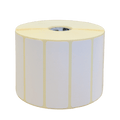 |
Epson Premium Matte LabelC33S045531 | 102 × 51 mm | Normal Paper | 650 | 40 mm | 240,00 Kč+VATIn stock | |
 |
Epson Premium Matte LabelC33S045532 | 102 × 76 mm | Normal Paper | 440 | 40 mm | 240,00 Kč+VATIn stock | |
 |
Epson Premium Matte LabelC33S045533 | 102 × 152 mm | Normal Paper | 225 | 40 mm | 240,00 Kč+VATIn stock | |
 |
Epson Premium Matte LabelC33S045419 | 102 × 35000 mm | Normal Paper | 1 | 40 mm | 240,00 Kč+VATIn stock | |
 |
Epson PP Matte Label Premium7113426 | 51 × 29000 mm | Synthetic | 1 | 40 mm | 373,00 Kč+VATIn stock | |
 |
Epson PP Matte Label Premium7113413 | 76 × 51 mm | Synthetic | 535 | 40 mm | 507,00 Kč+VATIn stock | |
 |
Epson PP Matte Label Premium7113427 | 76 × 29000 mm | Synthetic | 1 | 40 mm | 507,00 Kč+VATIn stock | |
 |
Epson PP Matte Label Premium7113410 | 102 × 51 mm | Synthetic | 535 | 40 mm | 667,00 Kč+VATIn stock | |
 |
Epson PP Matte Label Premium7113704 | 105 × 29000 mm | Synthetic | 1 | 40 mm | 667,00 Kč+VATIn stock | |
 |
Epson High Gloss Label7113752 | 51 × mm | Normal Paper | — | 40 mm | 267,00 Kč+VATOut of stock | View |
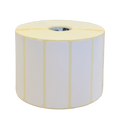 |
Epson High Gloss Label7113756 | 76 × 51 mm | Normal Paper | 610 | 40 mm | 401,00 Kč+VATIn stock | |
 |
Epson High Gloss Label7113757 | 76 × 127 mm | Normal Paper | 250 | 40 mm | 401,00 Kč+VATIn stock | |
 |
Epson High Gloss Label7113751 | 76 × 33000 mm | Normal Paper | 1 | 40 mm | 401,00 Kč+VATIn stock | |
 |
Epson High Gloss Label7113753 | 102 × 51 mm | Normal Paper | 610 | 40 mm | 560,00 Kč+VATIn stock | |
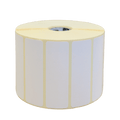 |
Epson High Gloss Label7113755 | 102 × 152 mm | Normal Paper | 210 | 40 mm | 560,00 Kč+VATIn stock | |
 |
Epson High Gloss Label7113750 | 102 × 33000 mm | Normal Paper | 1 | 40 mm | 560,00 Kč+VATIn stock | |
 |
Epson PP Matte Label Premium7113414 | 76 × 127 mm | Synthetic | 220 | 40 mm | 507,00 Kč+VATOut of stock | View |
 |
Epson PP Matte Label Premium7113411 | 102 × 76 mm | Synthetic | 365 | 40 mm | 667,00 Kč+VATIn stock | |
 |
Epson PP Matte Label Premium7113701 | 105 × 152 mm | Synthetic | 185 | 40 mm | 667,00 Kč+VATIn stock |
No matching products.
More CW C4000 guides
Related guides
Still stuck?
Contact support
Send us your model and a short description of the problem. Our team will help you find a solution.
