Troubleshooting
Bixolon SRP-E302 error light and printing problems: fixes
What the Error light on the SRP-E302 means and how to fix paper end, cover open, cutter jams, blank receipts, Windows, serial and network problems.
In this guide
The SRP-E302 has two lights, Power and Error, and one FEED button. Match what you see to the table, then open the fix. Not sure whether the printer or the computer is at fault? Run a self-test: hold FEED while you switch the printer on.
Find your symptom
| What you see | Likely cause | Fix |
|---|---|---|
| Error light on, roll empty | Paper end | Fix 1 → |
| Error light on, paper loaded | Printer cover not fully closed | Fix 2 → |
| Paper not cut, cover won't open | Cutter blocked by paper | Fix 3 → |
| Paper stuck or crumpled at the outlet | Paper jam | Fix 4 → |
| Receipt blank, faint or patchy | Roll the wrong way round, dirty head or unsuitable paper | Fix 5 → |
| Power light off | No power | Fix 6 → |
| Self-test prints, Windows prints nothing | Driver, port or print queue | Fix 7 → |
| Random characters on the receipt | Serial settings or wrong driver | Fix 8 → |
| Network printer not found (ES version) | IP address, cable or port | Fix 9 → |
Fixes
1. Paper endError light on, no paper
CauseThe paper end sensor found no paper. Bixolon lists only a paper end sensor for the SRP-E302, so there is no early warning before the roll runs out.
Fix
- Raise the cover-open lever and open the printer cover.
- Remove the empty core and place a new 80 mm roll, with the coated side towards the print head as shown on the cover and in Bixolon's manual.
- Pull out a little paper and close the cover by pressing firmly on its centre.
Rolls whose paper end is glued to the core may not be detected as empty.
2. Cover openError light on with paper loaded
CauseThe printer cover is not fully closed.
Fix
- Open the cover and check that nothing is caught under it.
- Close the cover by pressing firmly on its centre.
3. Cutter jam, cover won't openPaper not cut, cover locked
CausePaper is caught in the autocutter and the blade has not returned home, so the cover stays locked.
Fix
- Switch the printer off and on again. For a small jam this can return the blade by itself.
- If the cover still won't open, switch the printer off. Never force the cover open: it can damage the cutter.
- Pull out the cutter cover.
- Turn the knob with a cross-head screwdriver, as shown in Bixolon's manual, until the blade is back inside.
- Open the printer cover, remove the jammed paper and refit the cutter cover.
- Switch the printer on.
Important
Keep your fingers away from the cutter blade and the hot print head.
4. Paper jamPaper stuck or crumpled at the outlet
CausePaper is caught in the paper path, or the outlet was blocked while the printer printed. Bixolon warns that a hand held above the outlet can cause a jam.
Fix
- Open the cover and remove the crumpled paper. If the cover won't open, use Fix 3.
- Reload the roll and close the cover.
- Keep the outlet clear while the printer prints.
5. Blank or faint receiptsPaper feeds but the print is missing or pale
CauseA reversed roll prints blank. Pale print means a dirty print head, unsuitable paper or low density.
Fix
- Blank receipt: turn the roll round and check the direction against the mark on the cover.
- Faint or streaky print: switch off, open the cover, remove the paper, let the print head cool and wipe it with medical alcohol. Bixolon recommends cleaning at every roll change.
- Use thermal paper 62 to 75 µm thick, ideally one of Bixolon's recommended papers.
- Still pale? Raise the density with "2 : Set Print Density" in the memory switch menu (see the setup guide) and save with "0 : Exit and reboot printer".
6. No powerPower light off
CauseThe adapter has no power, is not connected properly, or the power switch is off.
Fix
- Check the light on the AC/DC adapter. If it is off, check the power cord at both ends and try another wall socket.
- Check that the DC plug sits fully in the printer's power port, the right way round.
- Switch the power switch on.
- Still dark? Contact us with the serial number.
7. Nothing prints from WindowsSelf-test works, print jobs don't
CauseThe printer works, so the problem is on the computer: no Bixolon driver, the wrong port, or the wrong printer selected.
Fix
- Check that the cover is closed, paper is loaded and the Error light is off.
- Install the Software POS Windows Driver from the Bixolon download page, if it isn't installed yet.
- Open Settings › Bluetooth & devices › Printers & scanners, open the printer properties and check on the "Ports" tab that the port matches your connection: USB, the right COM port, or the printer's IP address.
- Click "Print Test Page", then check that your POS software prints to the SRP-E302.
- Does your POS software need a COM port while the printer is on USB? Install Bixolon's virtual COM port driver for USB (BXLVCOM4USB) from the same page.
8. Garbled charactersRandom symbols or missing text
CauseDifferent serial settings on computer and printer, or software that sends another brand's commands.
Fix
- Serial (ES version): set the same baud rate, parity and handshaking in the driver or POS software as in the printer.
- Print through the Bixolon driver, or select a Bixolon or compatible receipt printer in your POS software.
- To see exactly what the printer receives, use hexadecimal dump mode: with the printer off, open the cover, hold FEED while you switch on, then close the cover. If the printer asks you to choose a mode, select the hexadecimal printing function. Send your print job. Switch off and on again to leave the mode.
9. Network printer not foundSRP-E302ESK over Ethernet
CauseThe printer has no IP address, an address in a different network, or the software uses the wrong port. The SRP-E302K is a USB-only version and has no network port.
Fix
- Print the network settings: open the cover, hold FEED for about five seconds, close the cover, then press FEED once briefly and hold it for one second ("1: LAN Information Print").
- No IP address on the printout: check the network cable on another device and make sure your router hands out addresses by DHCP.
- The address must be in your computer's network: with subnet mask 255.255.255.0, the first three numbers must match.
- Use port 9100 in the driver and POS software.
Lost network settings: choose "2: LAN Factory Reset and Reboot Printer" in the same menu to return to DHCP.
Frequently asked questions
What does the Error light on the Bixolon SRP-E302 mean?
The printer has stopped because of a problem such as no paper or an open printer cover. Load paper or close the cover firmly and the light goes out.
Why does the Error light blink after a self-test?
That is normal. The printer is waiting for you: press FEED briefly to continue the test print, or hold it for one second to open the memory switch menu.
Why are my SRP-E302 receipts blank?
The paper roll is probably the wrong way round, or the paper is not thermal paper. Turn the roll round so the coated side faces the print head.
Was this guide helpful?
Used in this guide
Compatible consumables and accessories for the SRP E302.
Compatible receipt rolls
| Product | Width | Length | Roll Ø | Core | Price | ||
|---|---|---|---|---|---|---|---|
 |
Zebra Z-Perform 1000D 80 Receipt3012973 | 80 mm | — | 40 mm | 12.7 mm | 90,00 Kč+VATIn stock | |
 |
Zebra Z-Perform 1000D 80 Receipt3013287 | 80 mm | 11.28 m | 40 mm | 12.7 mm | 96,00 Kč+VATIn stock | |
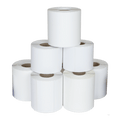 |
Zebra Z-Perform 1000D 60 Receipt3013286 | 80 mm | 15.54 m | 40 mm | 12.7 mm | 121,00 Kč+VATIn stock | |
 |
Zebra Z-Perform 1000D 60 Receipt3014861-T | 80 mm | 26.52 m | 50 mm | 12.7 mm | 181,00 Kč+VATOut of stock | View |
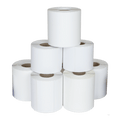 |
Citizen Thermal Paper3623200 | 80 mm | — | 56 mm | 12.7 mm | 1.616,00 Kč+VATOut of stock | View |
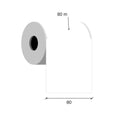 |
Thermal paper 80mm / 80m 12 gKK019262 | 80 mm | 80 m | — | 12 mm | 230,00 Kč+VATIn stock |
No matching products.
More SRP E302 guides
Related guides
Still stuck?
Contact support
Send us your model and a short description of the problem. Our team will help you find a solution.
